Fedora Atomic Sway as a daily driver
Fedora Atomic Sway as a daily driver !
New update: Jump down to see how my workflow evolved with one shared Dev Container for all repositories.
Starting a new year felt like a great time to reevaluate my workstation setup. I don’t want my OS to be exciting (okay, maybe a little). I want it to be boring, predictable, and modern enough to not get in my way.
My workstation is not just “a random Linux laptop”. It’s the pc I use every day to manage VMs, interact with resources, write Terraform, Ansible, and tools in Python etc….
This is a short recap of my use/setup of Fedora Atomic.
I did consider NixOS, but I didn’t want my OS to become another project and NixOS isn’t exactly lightweight. Fedora Atomic hit the sweet spot. The setup was super super easy, one day, clean install, minimal tweaks, done.
1. Life before Fedora Atomic, Debian Testing
Before that, I was running Debian Testing, still with the excellent sway WM, Debian Stable was a little too conservative for my needs. At the time, maybe less so now, sway versions were outdated after release, which made testing a not so obvious middle ground.
It mostly worked but also came with frequent updates and occasional frustration.
Why sway
I’ve been on Sway long enough to be at ease with it, works well easily.
I tried Hyprland, lots of motion but it didn’t bring anything meaningful to my workflow. With Sway, everything works and most important, i still have my existing habits :).
2. What Fedora Atomic is
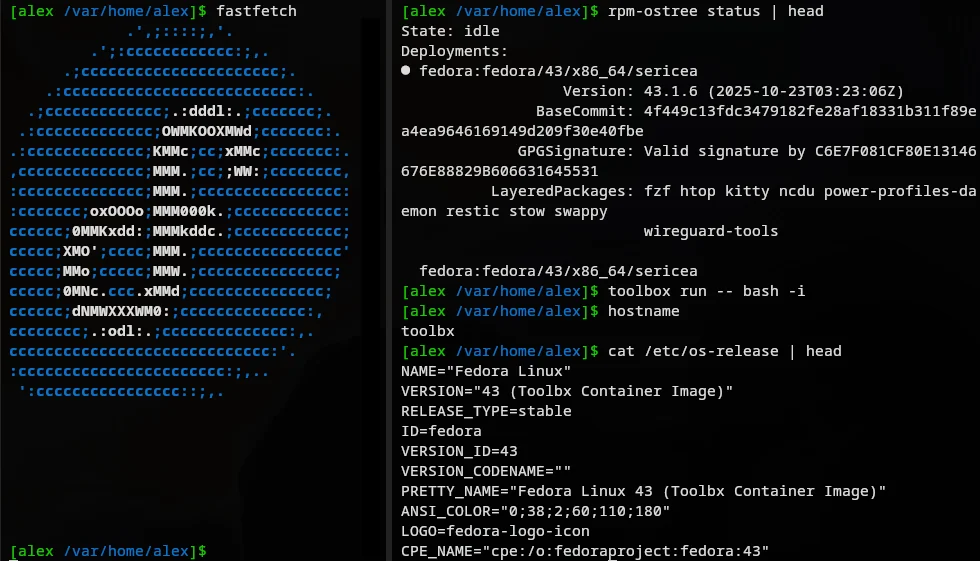
Fedora Atomic is built around immutability, the base OS is delivered as an OSTree image, not as individual RPMs.
this command will shows which immutable OS image you’re running now and what changes (updates, layered packages, rollbacks) will apply on the next boot.
1
rpm-ostree status
System updates are atomic and a new OS image is prepared alongside the current one.
1
sudo rpm-ostree upgrade
The root filesystem is read-only by default.
If you need system-level packages, you layer RPMs. Layering means rpm-ostree rebuilds the OS image with those packages included, instead of modifying the running system.
1
rpm-ostree install restic
The new image (after update or layering rpms) becomes active only after reboot:
1
systemctl reboot
Layer a package only if it’s system level something needed at boot, before login, or for core hardware and services.
3. Packages concepts, flatpak, toolbox
If you don’t want to reboot, don’t layer it.
You have two main options:
Dev tools and Cli → use a container with Toolbox
Desktop apps → use Flatpak
Toolbox is a way to run a mutable Fedora environment on top of an immutable system, it use podman. It creates a container that looks and feels like a normal Fedora install.
1
2
toolbox enter
sudo dnf install ansible
Flatpak is designed for desktop applications. Apps run sandboxed, with isolated dependencies and independent updates.
1
flatpak install flathub org.mozilla.Firefox
Toolbox and Flatpak keep the OS clean while giving flexibility.
4. I and everyone dotfiles handling
using the gracious Git and GNU Stow combo
All configuration files live in a single Git repository at the root of home directory in ~/
Stow then creates symlinks from this repository into the right locations.
1
2
3
4
5
mkdir ~/dotf-stow
cd ~/dotf-stow
cp ~/.bashrc .
cp -r ~/.config .
stow .
Stow links ~/dotf-stow/.bashrc → ~/.bashrc
Gitleaks pre-commit guard
I also use gitleaks to block secrets before they land in Git history.
Install it in the environment where you commit (toolbox for me):
1
2
toolbox enter
sudo dnf install gitleaks
The repo ships a versioned hook:
1
ls -l ~/dotf-stow/.githooks/pre-commit
Hook content:
1
2
3
#!/usr/bin/env sh
set -e
gitleaks git --staged --redact --verbose --exit-code 1
Tell Git to use the repo hooks directory:
1
git config core.hooksPath .githooks
Quick test (commit should fail):
1
2
3
echo "ghp_123456789012345678901234567890123456" > leak.txt
git add leak.txt
git commit -m "test gitleaks"
5. Alias handling, .zshrc, .bashrc
Zsh is now my primary interactive shell. Its configuration is kept in the dotfiles repository and split into small files under ~/.config/zsh/:
.zshenvsets the sharedPATHfor every Zsh process..zshrcloads the interactive configuration.- The numbered files configure Oh My Zsh, history and completion, aliases, functions, and the prompt.
The aliases are therefore maintained in 20-aliases.zsh, rather than in a shared main.sh. This keeps the Zsh setup easy to read and allows the files to be loaded in a predictable order. A small Bash configuration remains available as a fallback, with .bash_profile loading .bashrc for login sessions.
1
2
3
4
5
6
# ~/.zshrc
[[ -o interactive ]] || return

for config_file in "$HOME"/.config/zsh/*.zsh(N); do
    source "$config_file"
done
6. VSCodium setup
I tested VSCodium as a Flatpak, as a layered RPM, and inside Toolbox. Flatpak added sandbox and environment friction, while running the full editor from Toolbox felt less integrated and had noticeable overhead on my hardware.
The layered RPM was the smoothest of the three: native performance, direct filesystem access, and no bridge between the editor and the host. Its downside is adding another package to the Fedora Atomic image and requiring a reboot after installation.
That was my preferred setup at the time. As described in the July update below, I now run Visual Studio Code on the Fedora host and keep the complete infrastructure development toolchain inside a shared Dev Container.
7. Screenshot setup
Now lets talk about setting up a near perfect screenshot utilie, swappy, Prerequisite it to have :
1
grim slurp wl-copy
I already had them installed by default except for swappy. I’m layering it because it’s more than just a CLI tool, it’s tightly integrated with the OS and the window manager.
1
sudo rpm-ostree install swappy
Then you have to setup the swappy default conf in our dotfiles managed
1
vi dotf-stow/.config/swappy/config
then
1
2
3
4
5
6
[Default]
save_dir=$HOME/Pictures
save_filename_format=screenshot-%Y%m%d-%H%M%S.png
show_panel=true
paint_mode=rectangle
fill_shape=false
and to finish, add this to sway :
1
v dotf-stow/.config/sway/config.d/20-keys.conf
1
bindsym $mod+Shift+a exec grim -g "$(slurp)" - | swappy -f -
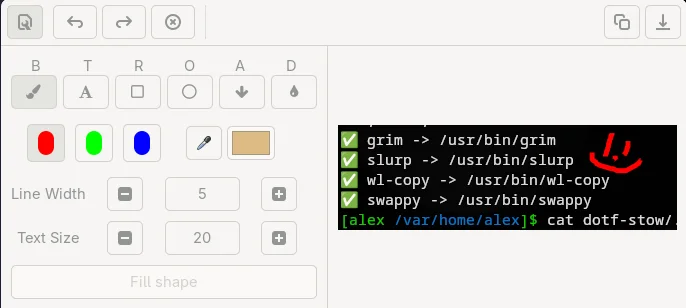
look at this beautiful screenshot of my screenshot tool,swappy !
8. Restic for encrypted backup
Restic protects my important laptop data with encrypted, versioned backups to a repository on my backup server. The repository is accessed over SFTP, so the server only needs Restic, an account dedicated to backups, and the appropriate SSH access.
The backup includes my documents, desktop, pictures, dotfiles, SSH configuration, and local keyrings. A small script in my dotfiles repository runs the backup and removes old snapshots according to a retention policy. Restic asks for the repository password when needed; it is not stored in the repository or committed to Git.
I install Restic on the Fedora Atomic host as a layered package, then run the script from my dotfiles repository. The backup is only useful if it can be restored, so I periodically check the snapshots and perform a test restore to a temporary directory. 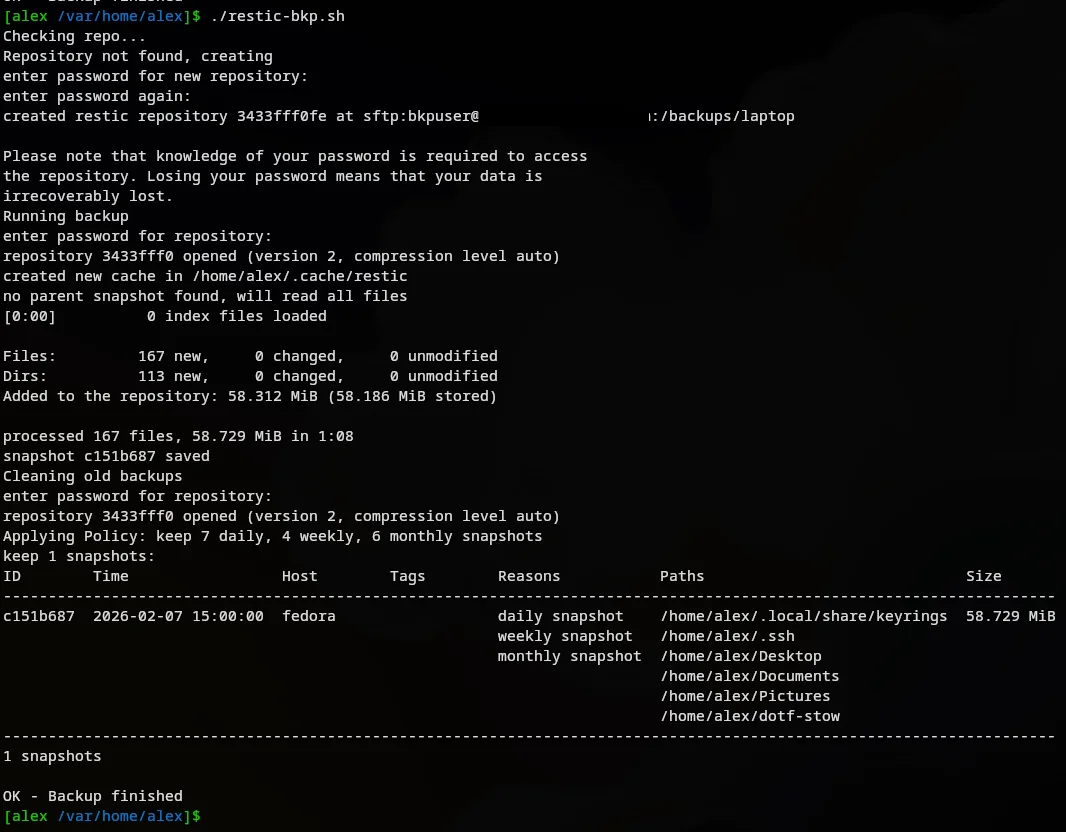
And the complete desk : 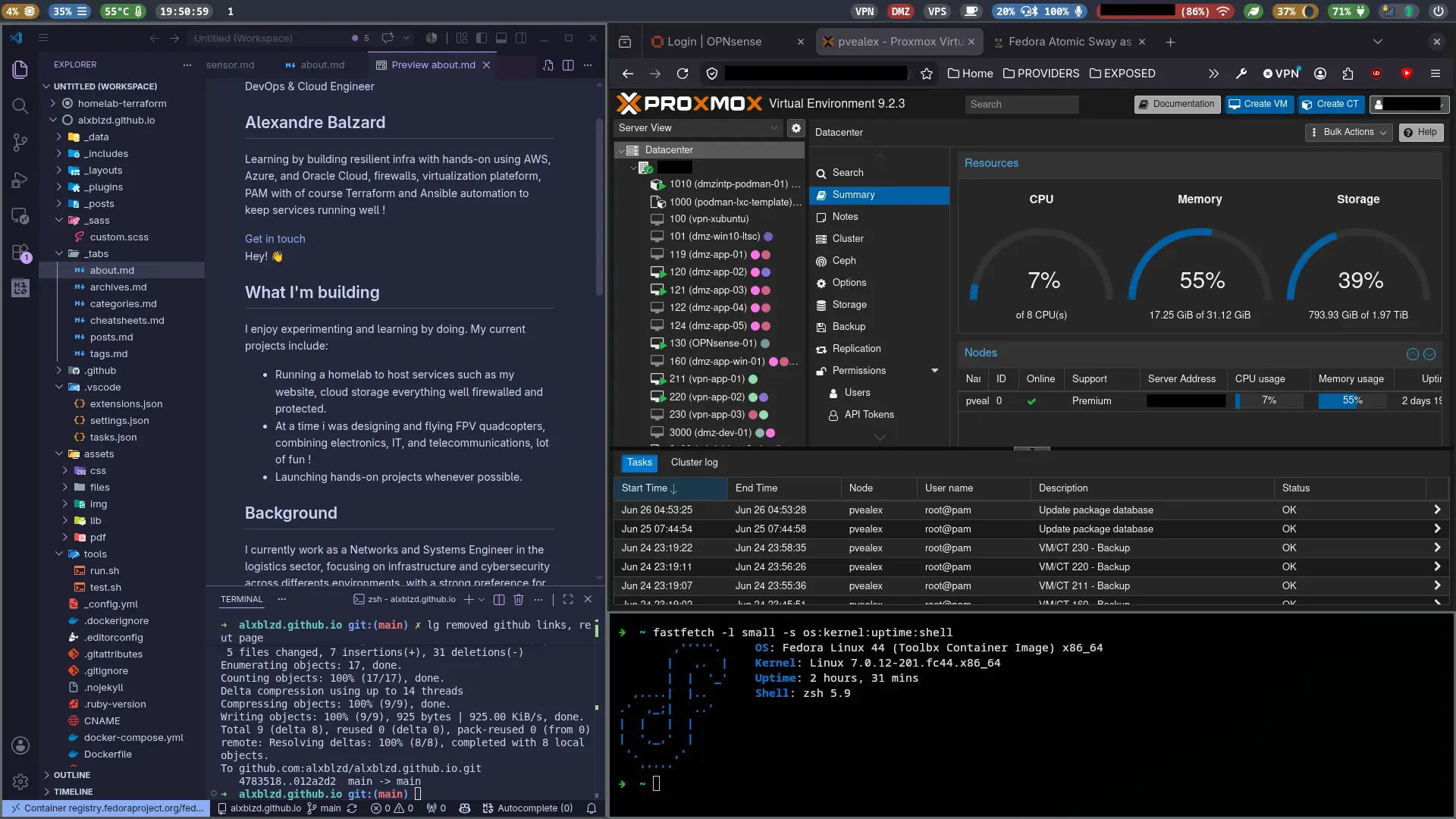
July 2026 update: one Dev Container for all repositories
A few months later, the Fedora Atomic host is still working well, but my development workflow has evolved. Visual Studio Code now runs directly on the host, with GPU acceleration disabled to avoid rendering issues, while Podman runs a shared Debian Trixie Dev Container.
I still use Fedora Toolbox, but only for actions related to the host itself. None of my infrastructure repositories or their code and tooling are handled from Toolbox anymore; that work now happens entirely inside the Dev Container.
Instead of keeping the Dev Container configuration in a single repository, I moved it to a central workspace:
1
2
3
4
5
6
7
8
9
10
~/Documents/1-WKS/
├── .devcontainer/
│   ├── devcontainer.json
│   └── Dockerfile
├── multi-repos.code-workspace
└── repos/
    ├── ansible-homelab/
    ├── ansible-inventory/
    ├── homelab-terraform/
    └── ...
The .code-workspace file opens several independent Git repositories in one VS Code window, and they all share the same container configuration. The container starts from the standard Dev Containers Debian Trixie image:
1
FROM mcr.microsoft.com/devcontainers/base:trixie
The Dockerfile installs the system tools, renames the default vscode user to alex, configures Zsh and passwordless sudo, and prepares /home/alex. The devcontainer.json then uses alex as the remoteUser, disables updateRemoteUserUID to avoid the UID/GID issue I previously encountered, and installs Ansible, OpenTofu, and the Codex extension.
I open the workspace from Fedora and reopen it inside the container:
1
code ~/Documents/1-WKS
The same files are then available read-write at /workspaces/1-WKS. They remain stored on Fedora; the Debian container only provides the development environment.
One important detail is file ownership. The Fedora user and the alex user inside the container should have matching numeric IDs, normally uid=1000 and gid=1000. I avoid recursive chown commands inside the mounted workspace because they would also change ownership on the host. With Podman and SELinux, the bind mounts use relabel=shared.
I also mount the host Codex directory directly into the container:
1
2
3
4
5
6
7
8
"containerEnv": {
    "CODEX_HOME": "/home/alex/.codex"
},

"mounts": [
    "source=${localEnv:HOME}/.codex,target=/home/alex/.codex,type=bind,relabel=shared",
    "source=${localEnv:HOME}/.ssh/config,target=/home/alex/.ssh/config,type=bind,readonly,relabel=shared"
]
This keeps config.toml, auth.json, authentication, and workspace trust persistent across container rebuilds.
Reusing my host SSH setup
I wanted the container to use the same SSH host aliases as Fedora without copying my private keys into it. The second bind mount above exposes only ~/.ssh/config, read-only. Commands such as ssh dmz-app-01, Ansible, Git, and other SSH clients can therefore use the host names, users, ports, and proxy settings already defined on Fedora.
The private keys remain on the host. VS Code Dev Containers forwards the host SSH agent and creates a proxy socket inside the container, exposed through SSH_AUTH_SOCK. A working setup can be checked on Fedora before opening VS Code:
1
2
3
echo "$SSH_AUTH_SOCK"
test -S "$SSH_AUTH_SOCK" && echo "socket exists"
ssh-add -l
Then, from inside the container:
1
2
echo "$SSH_AUTH_SOCK"
ssh-add -l
One subtle problem cost me some time: VS Code can retain an obsolete value of SSH_AUTH_SOCK. In my case, the editor was still trying to reach /home/alex/.ssh/agent/fedora.sock, although my current shell was using a different, working socket. Rebuilding the container did not help because the stale value belonged to the VS Code process running on Fedora, not to the container image.
After reopening the workspace in the container, the forwarded socket should list the same keys. There is no need to mount the agent socket or the private key files manually.
I also install sshs, a small terminal interface that builds its host list from ~/.ssh/config. The Dockerfile downloads a pinned release, verifies its SHA-256 checksum, and installs it as /usr/local/bin/sshs. With the read-only config mount and agent forwarding in place, I can simply run:
1
sshs
The final setup is simple: Fedora Atomic owns the desktop, VS Code, Podman, the source files, private SSH keys, SSH agent, and Codex state; one reproducible Debian Dev Container provides Ansible, OpenTofu, Git, Zsh, sshs, and Codex for every repository. It has become a cleaner separation between a stable workstation and a disposable development environment.